How to set the automated transcription behavior
This feature is only applicable if you have option E27 AI.
-
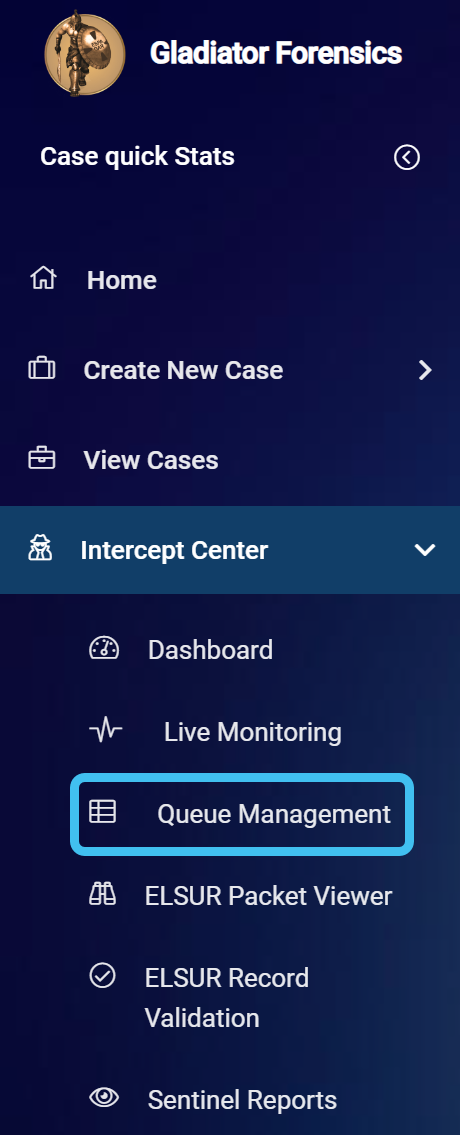
On the main menu click Intercept Center, then click Queue management.
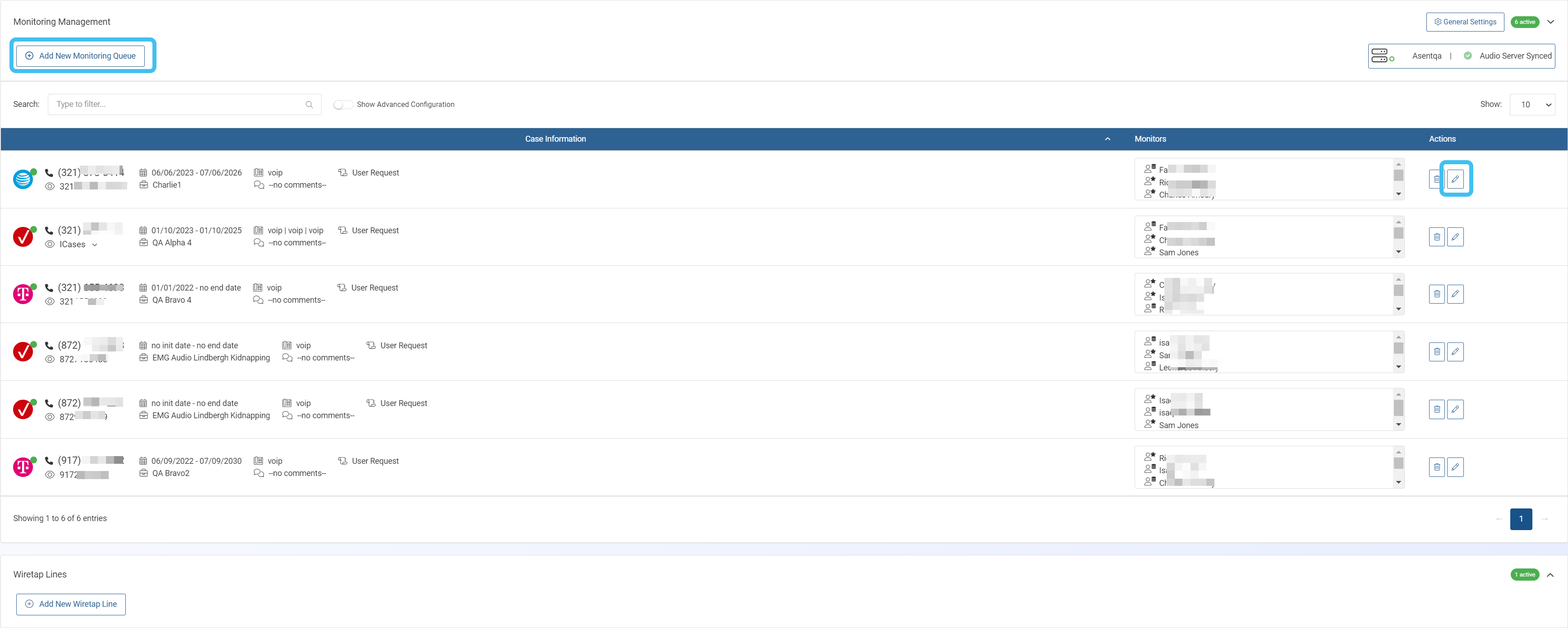
The Queue management screen opens.
-
For a new queue click
 , or for an existing queue click
  .
. 
-
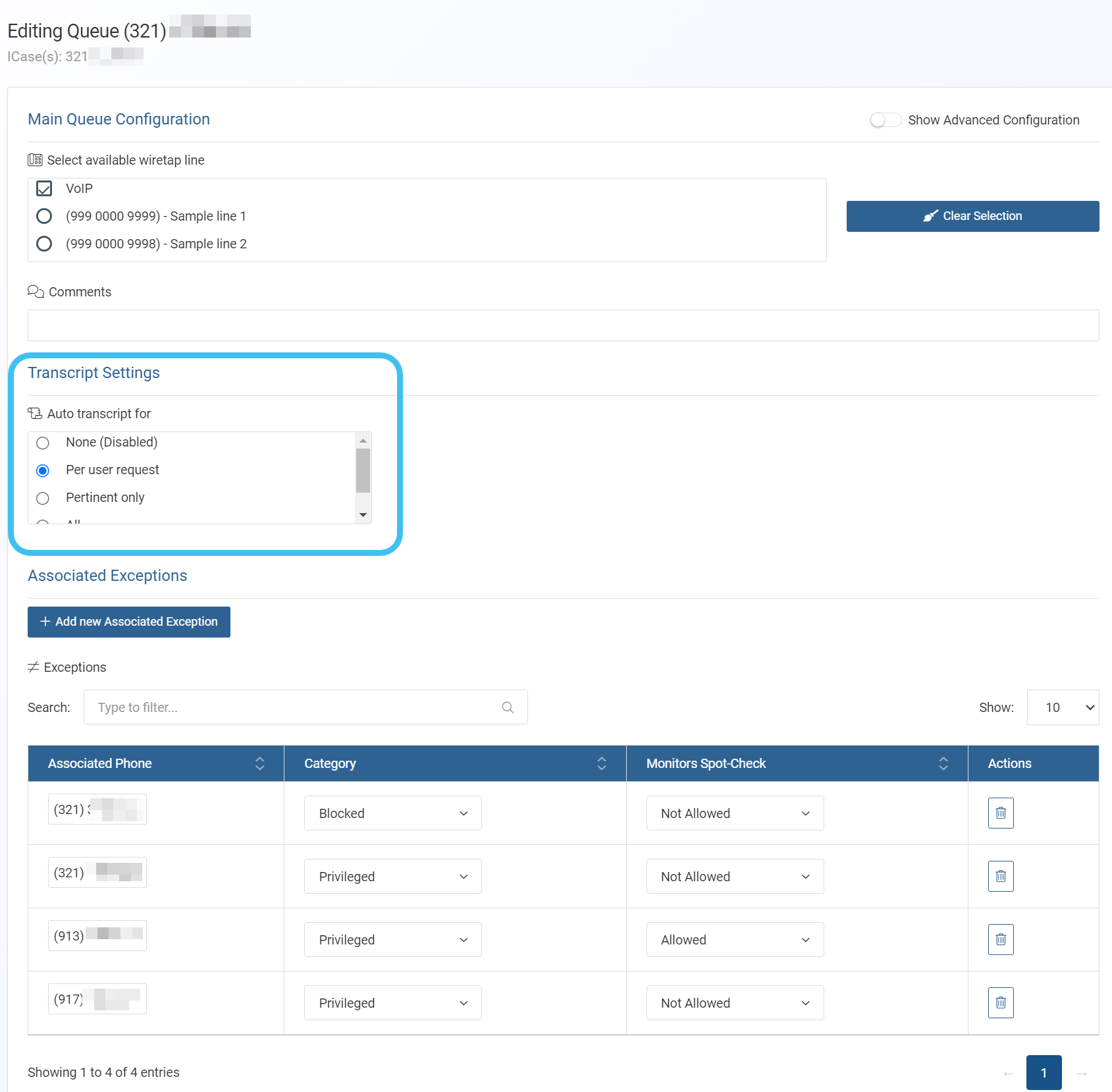
In Transcript settings, select the method you want used for the auto transcription of calls once the call has ended.
-
None (Disabled): no calls on the monitoring queue can be auto transcribed. This is the default setting.
-
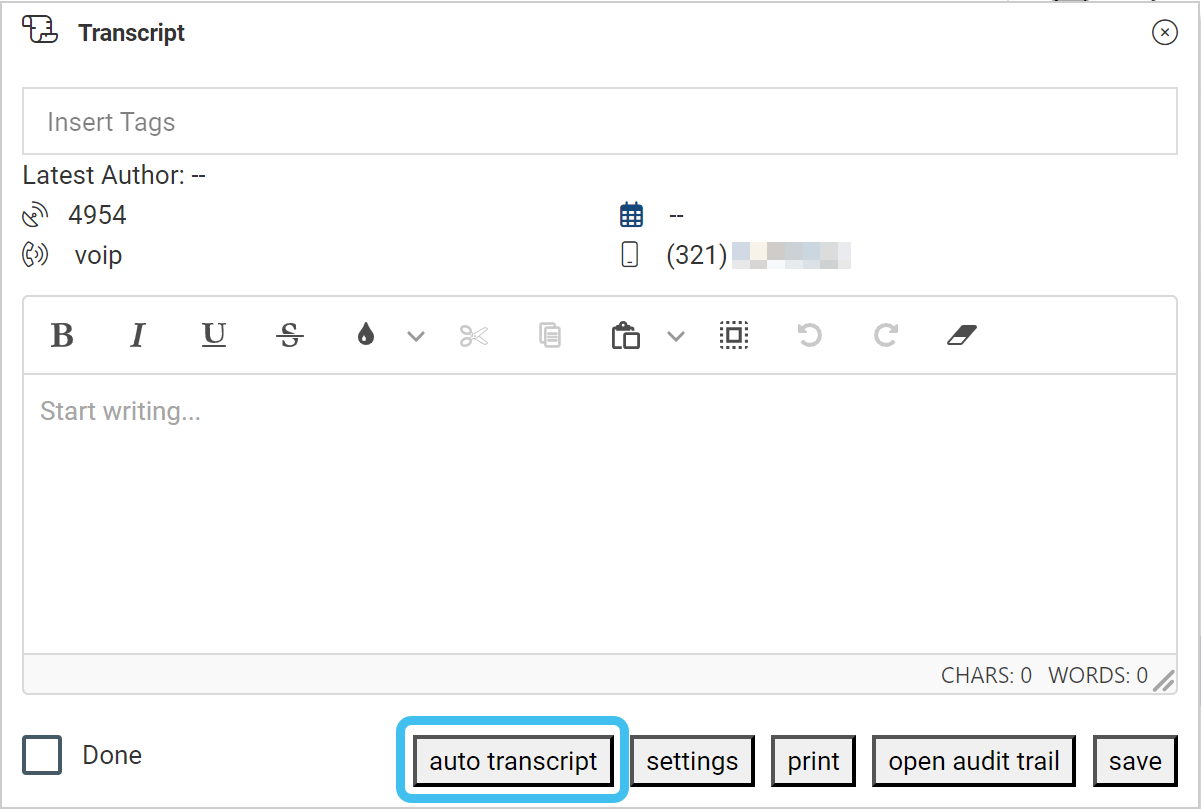
Per user request: this provides an auto transcript button on the Transcript dialog box which allows the monitor to decide which calls are auto transcribed. This is the most commonly used setting. Note, if the monitor enters a transcription manually then it is no longer possible to request an auto transcription and the auto transcript button does not display.
-
Pertinent only: when the call category is set to pertinent then a transcription is automatically created.
-
All: transcriptions of all calls, including unattended calls, are automatically created. This setting is not commonly used due to the large number of calls, most of which do not contain pertinent information.
-
-
Click Save.
NOTE: It is not possible to save any changes to a monitoring queue when there is currently a communication on the queue being monitored. You must wait till the communication has ended.